Explore Railway Maps Side by Side
Compare mapped railway infrastructure with satellite imagery while both map views stay synchronized.
Use the Rail layer to see OpenRailwayMap over a light basemap, then inspect the surrounding area in Google satellite view.
Open the railway map comparison →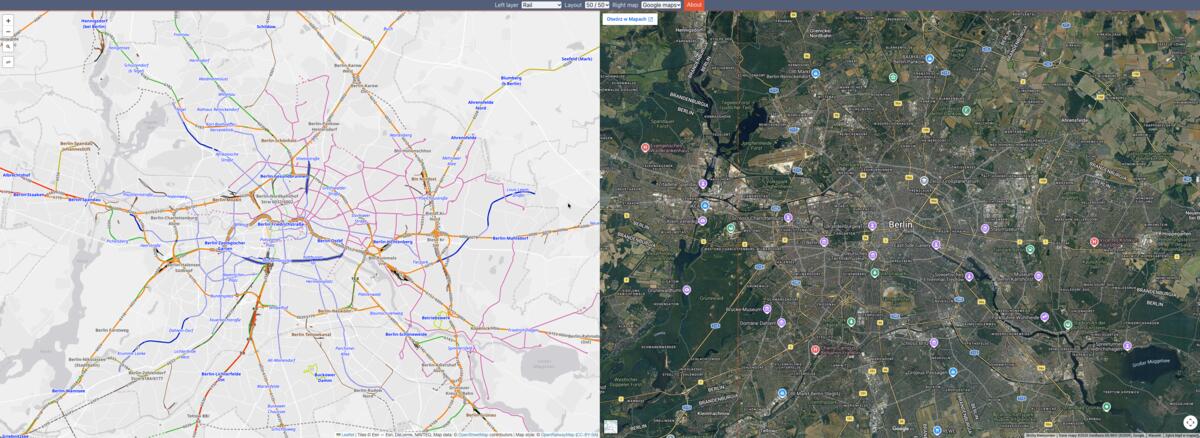
What the railway layer shows
Dualmaps’s Rail layer combines a muted basemap with OpenRailwayMap, a map style focused on railway networks. The view can help you explore track alignments, stations and other mapped railway features while the opposite panel provides geographic context. Compare the mapped network with satellite imagery to understand how tracks relate to roads, buildings, terrain and the surrounding urban or rural landscape.
Railway mapping is contributed geographic data, not a live train position feed or operational timetable. The presence or absence of a mapped feature should not be treated as confirmation that a track is currently active, accessible or safe to approach. Coverage and detail can vary by region, and the underlying map data may not reflect recent changes.
Example: follow a route through a city
Open the sample view around Berlin and trace a railway corridor on the left. Pan along the route and the satellite panel follows the same movement. This makes it easier to see how the line passes through stations, built-up areas or open land. Zoom in around a junction or station to compare the mapped linework with visible features, then zoom out to understand how the corridor connects with the wider network.
Search for a different place to explore a station or rail line of interest. The comparison is visual and map-based: use official transport or railway sources for schedules, service status, access restrictions and safety information.
Keep both maps in sync
Dualmaps synchronizes the map position and zoom so you can focus on comparing rather than aligning two separate views manually. Change the right-hand map provider or switch the left layer to OpenStreetMap, topography or satellite imagery whenever a different context is useful. The selected view is only a starting point; the controls remain available after opening the map.
Open the railway layer →