Compare Maps Side by Side
Put two synchronized map views next to each other and explore the same place without switching tabs.
Compare map styles, geographic detail and imagery at a glance. Start with OpenStreetMap and Google’s satellite view, then choose other layers in the map controls.
Open the map comparison →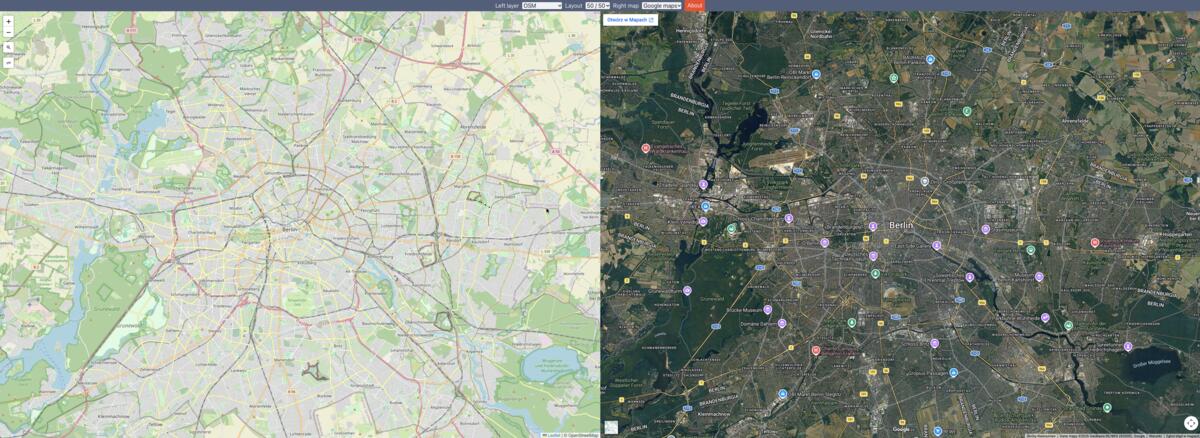
Why compare maps side by side?
Every map emphasizes different information. One view may make streets easy to follow, while another reveals terrain, satellite imagery, railway infrastructure or a different set of mapped places. Comparing them at the same position gives you context that is difficult to get from a single layer. It can help with route planning, local research, checking a building footprint or understanding how a landscape is represented.
Dualmaps synchronizes map movement, so dragging or zooming the left map updates the other view. You can search for an address or place on the OpenStreetMap panel, then compare that exact area with the selected map on the right. A shared center and zoom make visual differences easier to interpret than two separately opened maps.
Try a real-world comparison
Open the sample Berlin view and zoom in on a street block. Compare mapped roads and buildings on OpenStreetMap with the satellite imagery on the right. Look for a path entrance, a road junction or a large roof and see how each view helps answer a different question. Then use the layer selector to explore topographic, cycling, railway or satellite layers. Available detail depends on the selected source and location.
The starting configuration is only an example. Search for another destination, move around the map and adjust the zoom to focus on the features that matter to you. Dualmaps is designed for visual inspection; always check source dates, coverage and provider terms when accuracy or recency is important.
Choose the views that answer your question
Use a street map when you need labels and mapped routes, satellite imagery when you need visible ground context, and specialized layers when you want to examine cycling routes, railways, terrain or elevation data. You can switch the right-side provider and keep the map position aligned as you explore.
Open the comparison to start with two useful baseline views. The map controls let you change the configuration at any time, so you can move from a general map comparison to a focused layer comparison in a few clicks.
Compare maps now →