Explore an Air Traffic Map
View aircraft tracking alongside a synchronized OpenStreetMap reference in one browser workspace.
Dualmaps opens the ADS-B map with a geographic map beside it. Pan or zoom the map to explore an area and keep both views aligned.
Open the air traffic map →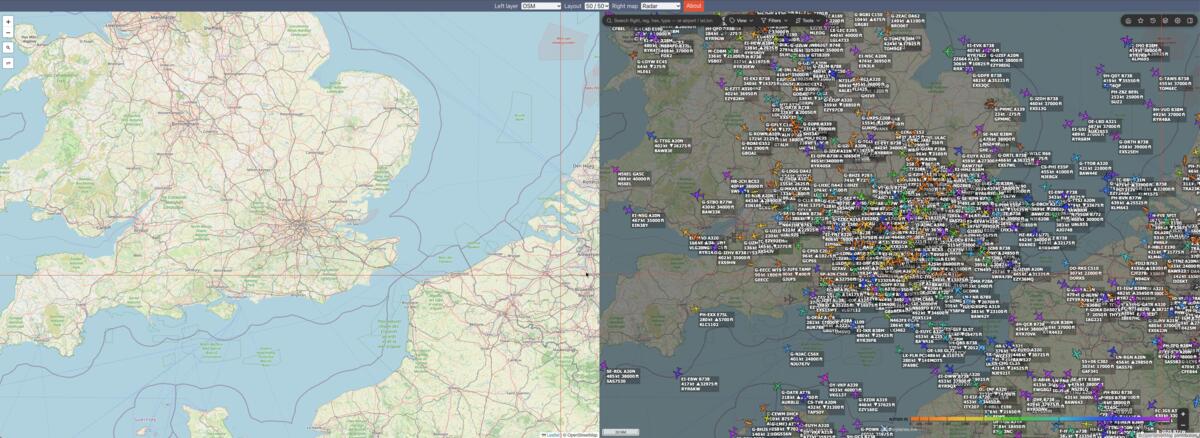
Explore aircraft tracking with map context
The air traffic view in Dualmaps is provided by Airplanes.live and displayed beside an OpenStreetMap panel. The two views are useful together when you want a geographic reference while exploring the tracking map. Start around London, then pan or zoom to another region; the map position is synchronized so both panels stay focused on the same general area.
Aircraft tracking services rely on available signals, receivers, network coverage and provider processing. Coverage can be incomplete, and displayed positions or details may be delayed or unavailable. This view is for general exploration and is not suitable for operational aviation decisions, flight safety or authoritative flight status. Refer to official aviation and airline sources when information is time-sensitive.
Example: explore an area around London
Open the sample view and inspect the region around London. Use the shared map position to keep the geographic reference and air traffic panel aligned as you explore. Zoom out to see a wider region or move the map to another location. Search and navigation controls on the OpenStreetMap panel can help you find a place before inspecting its surroundings in the tracking view.
What appears on the air traffic map depends on the external service and the data it receives. A missing aircraft marker should not be interpreted as proof that no aircraft is present. The service’s own interface and documentation explain its coverage and available information.
One position, two map views
Dualmaps is designed to keep the maps together as you pan and zoom. You can change the left-hand layer or choose another right-side map provider using the application controls. This makes it easy to move from air traffic exploration to a comparison with satellite imagery or another map style without losing the location you are investigating.
Explore the air traffic map →