Blend LIDAR and Topographic Maps
Explore terrain by combining the Geoportal shaded-relief layer with OpenTopoMap in one full-screen map.
The example is centered near Gdańsk, Poland. Topography is blended over the LIDAR relief at 60% opacity, so you can inspect both terrain shading and map detail together.
Open the LIDAR + topography overlay →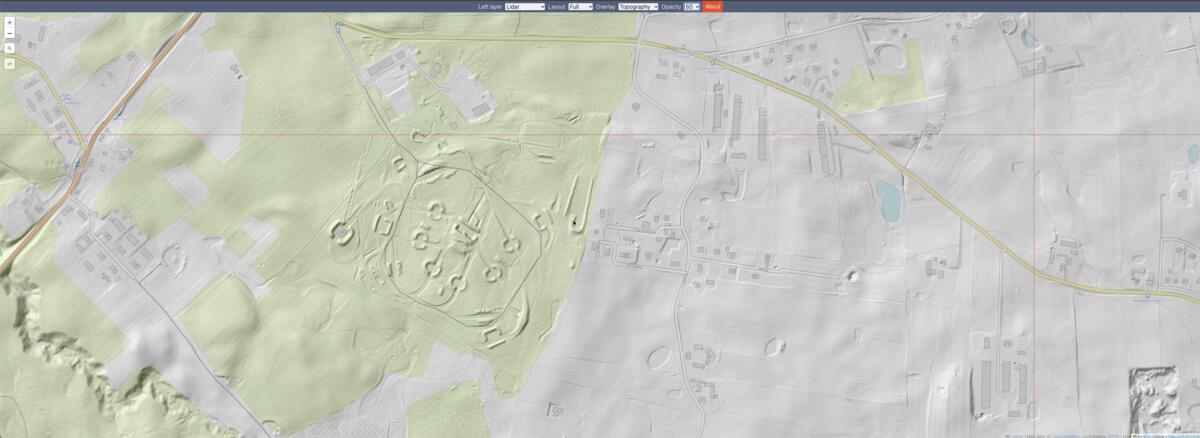
See terrain relief and topographic detail together
This map overlay combines two complementary views of the same area. The base LIDAR layer uses a shaded-relief service from Poland’s Geoportal, which helps make terrain shape and elevation changes easier to see. OpenTopoMap adds a topographic map style with geographic context such as mapped features and labels. Blending them can help you relate the shape of the land to the features represented on the map.
The example opens at zoom level 17 near 54.2984, 18.3261, with the topographic overlay set to 60% opacity. That balance leaves the relief visible while allowing the topographic layer to remain readable. Use the opacity control to adjust the blend for your screen or the area you are exploring.
Explore the landscape near Gdańsk
Start with the preselected location in northern Poland and zoom around the surrounding landscape. Look for changes in relief and compare them with the features shown by the topographic map. Pan to nearby areas to see how each layer contributes a different kind of context. The full-screen layout keeps the blended layers together, rather than placing a second map beside them.
These layers are useful for visual exploration, but they are not a substitute for survey data or a dedicated terrain-analysis tool. The Geoportal service displays shaded-relief map imagery, not raw LIDAR point clouds. Map coverage, resolution, update dates and licensing may differ between the Geoportal and OpenTopoMap sources.
Adjust the map overlay
Open the preconfigured LIDAR and topography blend, then use the controls to change the overlay or its opacity. You can select other supported layers, switch back to a side-by-side layout, or search and pan to a different location. Each map source has its own coverage and visual style, so try a few combinations to find the most useful view for your area.
Try the LIDAR + topography blend →