Compare Google Maps and Bing Maps
Explore a location with synchronized map views and switch between Google and Bing without losing your place.
Dualmaps keeps a shared map position as you change providers, making visual comparison easier than opening separate tabs.
Open the Bing Maps comparison →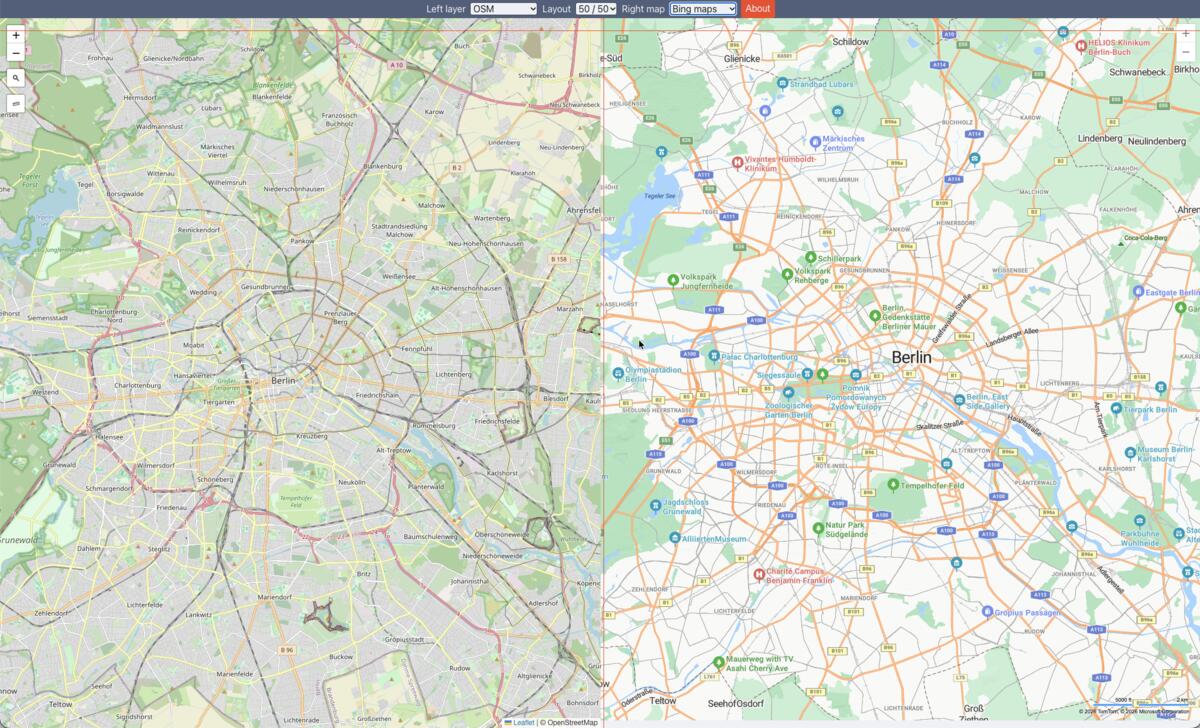
Compare providers at the same location
Google Maps and Bing Maps are independent mapping services. Their labels, imagery, road details and points of interest can differ depending on the location and the selected view. Dualmaps gives you a shared geographic position so you can inspect those differences without manually matching two separate maps each time.
The right-hand provider selector can load Bing Maps or Google Maps, while the left panel supplies an OpenStreetMap reference. Start with Bing, then choose Google Maps from the provider control to inspect the same area there. The map position is synchronized as you pan and zoom. Because only one provider is displayed in the right panel at a time, this is a quick provider-switch comparison rather than two commercial maps shown simultaneously.
Example: check a city street
Use the sample view around Berlin and zoom into a street or landmark. Note how road shapes, place names and surrounding features appear in Bing Maps, then switch the right-side provider to Google Maps. Compare the same location and scale. You can also use the OpenStreetMap panel as a stable reference while you examine each provider in turn.
Search for another place in the map control to test an area you know. A feature may appear in one provider but not another because sources, licensing, display rules and update schedules differ. Differences are useful to observe, but they do not alone establish which source is more complete or accurate.
Switch between Google and Bing
Open the preconfigured view with Bing on the right. To compare Google, use the right-map selector at the top of the application and select Google Maps. Continue panning or zooming from the left-hand map and the views remain aligned. Choose Street View, a 3D view or another provider when you want additional geographic context.
Start with Bing Maps →