Compare Satellite Maps Side by Side
Inspect the same place in two satellite views, aligned to the same center and zoom as you explore.
Dualmaps starts with Esri World Imagery beside Google Maps satellite imagery. Compare visible features without trying to line up separate browser tabs.
Compare satellite maps →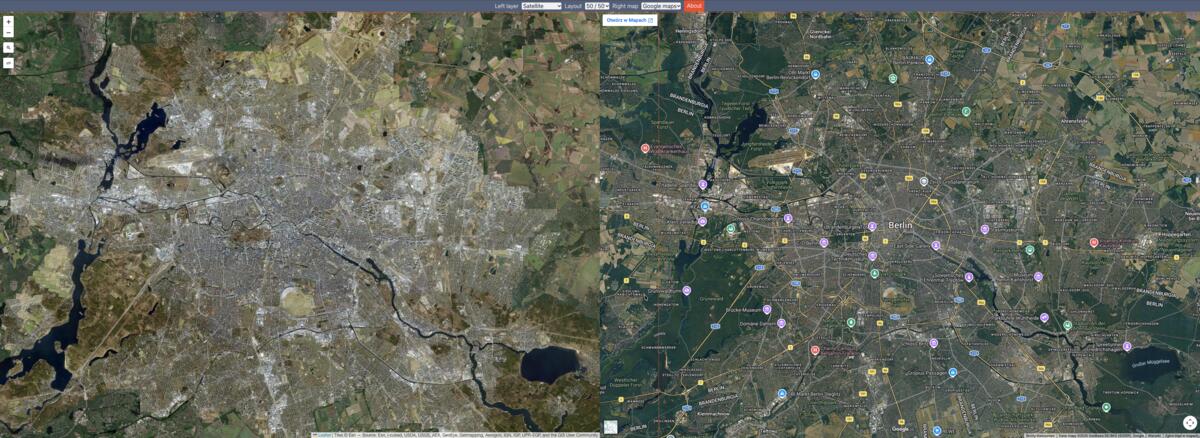
See imagery sources together
Satellite and aerial imagery can differ in capture date, resolution, color and coverage. Comparing two sources side by side helps you see those differences in context. A roof, road, construction site, field boundary or shoreline may appear more clearly in one view than another. Keeping both maps synchronized means you can pan across a neighborhood and compare the same feature on each side.
In the sample configuration, the left panel uses Esri World Imagery and the right panel uses Google Maps in satellite mode. These are separate services with their own availability and terms. The imagery shown is not necessarily live, and a sharper image does not automatically mean it is newer or more authoritative. Treat the maps as visual references and check source information for decisions that depend on date or accuracy.
Example: inspect a city block
Start with the Berlin view and zoom toward a recognizable block or landmark. Compare roof outlines, road markings, tree cover and open spaces between the two satellite layers. Move the map slightly and both panels follow, so differences remain easy to locate. You can also search for another address using the map search control and repeat the comparison in a location you know well.
Try several zoom levels: broader views help compare neighborhoods and land use, while closer views reveal building and road details where the imagery supports them. If a tile is missing or one provider looks different, the difference may reflect source coverage rather than a problem with the comparison tool.
Compare, then switch layers
Use the layer selector to replace satellite imagery with a street, topographic, cycling, railway or LIDAR layer. The same synchronized workspace can then compare imagery with map data, rather than only one satellite source with another. Adjust the zoom to keep both views focused on the same feature and use the search field to move to a new place.
Open the satellite comparison →